


Optimize WordPress and reduce unused CSS content. To do so, in this article you will learn:
- How to analyze and identify which files are loaded on your site
- Which files are unnecessary and which parts of them are worth keeping
- How to remove these files fully or partially
- How to load the useful CSS code on one or several pages
- How to improve page load speed in WordPress
Why unused CSS content is reduced
Those who know me already know I am a 100% advocate for maximum WordPress customization. This avoids headaches with updates, incompatibilities, load times, page weight, and most importantly, achieves a better PageSpeed Insights score to improve Google rankings.
How to find out which CSS files are loaded in your WordPress
An overload of CSS or JavaScript code is one of the characteristics of a website that can become a problem for load time, user experience, and Google rankings. I want to show you 3 ways to identify the files loaded on your site.
Each of them has its own advantages. If, for example, you built your site with one of the many visual page builders for WordPress, you will be surprised at how much you can optimize.
You can analyze which files are loaded using the coverage tool in dev tools or through code. Further below I explain each method in detail.
But before doing anything, you must deactivate any plugin that merges CSS and JS files — typically the caching plugin you are using — so you can identify each file separately.

GTMetrix Waterfall Report
With this wonderful tool we can identify all files loaded on your site with a single click.
It is as simple as going to the GT Metrix website and entering the URL to analyze. I recommend registering so you can select the server closest to the domain being analyzed, giving you coherent results.
After selecting the location, entering the URL, and clicking "Analyze", you can access the "Waterfall" section, where you will see a cascading load report. The first element to load appears first, the second appears second, and so on.
Advantages of analyzing loaded files with GTMetrix
With this waterfall report you can separately filter which CSS files are loading, which JavaScript files, which fonts, images, etc. — and you will also know the load time for each element.
View files loaded in WordPress via code
This requires slightly more advanced knowledge since you will need to write some code in your functions.php. For those unfamiliar, functions.php is a file that allows you to add code, and it can be found in the WordPress admin panel under Appearance > Theme File Editor > functions.php.
That said, if you have never done this before, it is best not to risk it and to ask someone with technical knowledge, as you could break your site completely.
What to keep in mind with this method
If the site is live, keep in mind that the data will be displayed in the footer of all pages, which is not very appealing to potential visitors.
The code
function ver_archivos_cargados() {
    global $wp_styles;
    global $wp_scripts;

    echo 'STYLES:';
    echo '<pre>';
    var_dump($wp_styles->queue);
    echo '</pre>';

    echo 'SCRIPTS:';
    echo '<pre>';
    var_dump($wp_scripts->queue);
    echo '</pre>';
}
add_action( 'wp_footer', 'ver_archivos_cargados' );
Code explanation
This function calls the global styles and scripts to display those in the queue. They are shown in the footer via the "wp_footer" action hook.
Advantages of retrieving CSS and JS files via code
This way we can obtain the handles ($handle) needed to remove those files from the WordPress load queue, as explained further below.
Analyzing unused CSS code in WordPress via Chrome Web Dev Tools
Google Chrome Web Developer Tools is a suite of tools that, when you know them well, can be extremely powerful. Here I want to talk about "Coverage", a tool that lets you see the CSS and JavaScript files loaded and even the percentage used on the page.

How to identify unused CSS files on a WordPress page
To carry out this process, simply follow these steps in Google Chrome:
- Load the desired URL
- Press F12 or Ctrl + Shift + I
- Look for the 3 vertical dots in the upper-right corner of the dev tools panel
- Click on it and look for: More tools > Coverage
- The Coverage panel should now appear at the bottom of dev tools. Expand it enough to see it clearly and click the circle button, which will turn red
- Reload the page and all JS and CSS files loaded on that page will start appearing
- Click on the tab to filter by CSS only
Here you will be able to see all CSS files loaded and the unused percentage of each one. All this information helps you decide whether to delete a file entirely, extract only a portion of the code, or leave it as is.
How to reduce unused CSS in WordPress with plugins (Not recommended)
I will not go into much detail here since I do not recommend this approach for many reasons: it adds extra functionality to the site, you lose full control over the code, it increases the risk of errors and incompatibilities, and more — much more.
That said, some users without a basic or intermediate WordPress skill level may still want to benefit from this technique. Without going on further, the most well-known plugins for removing unused CSS files are:
Asset CleanUp
This free plugin allows you to remove CSS and JS files, among many other features.
WP Rocket
This premium plugin — which claims to be the most powerful performance optimization plugin in the world (at least according to them) — includes a feature to automatically remove all unused CSS.
How to reduce unused CSS in WordPress without plugins (Recommended)
To remove a CSS file loaded in WordPress you first need to know its handle ($handle). To do this you must follow the step mentioned earlier: "View files loaded in WordPress via code".
Once you know the handle, place the following code in functions.php:
function remove_custom_styles() {
    wp_dequeue_style( 'handle' );
    wp_deregister_style( 'handle' );
}
add_action( 'wp_print_styles', 'remove_custom_styles' );
Simply replace the word "handle" with the handle of the selected file, keeping the quotes.
Code explanation
For this function we used the WordPress hook «wp_print_styles» which, as the name suggests, is responsible for printing (or loading) styles on our page. Inside this hook we have two functions that remove the style from the load queue («wp_dequeue_style») and unregister it («wp_deregister_style»).
Code examples for removing some CSS files:
Remove the CSS file included since WordPress 5.9. It is very likely not being used if your site existed before that version:
function remove_global_style_webheroe(){
    wp_dequeue_style( 'global-styles' );
    wp_deregister_style( 'global-styles' );
}
add_action( 'wp_print_styles', 'remove_global_style_webheroe' );
Remove the CSS file from the Contact Form 7 plugin
function remove_cf7_style_webheroe(){
    wp_dequeue_style( 'contact-form-7' );
    wp_deregister_style( 'contact-form-7' );
}
add_action( 'wp_print_styles', 'remove_cf7_style_webheroe' );
Remove the main GeneratePress CSS file
function remove_generate_style_webheroe(){
    wp_dequeue_style( 'generate-style' );
    wp_deregister_style( 'generate-style' );
}
add_action( 'wp_print_styles', 'remove_generate_style_webheroe' );
Remove the GeneratePress child theme CSS file
function remove_generate_child_style_webheroe() {
    wp_dequeue_style( 'generate-child' );
    wp_deregister_style( 'generate-child' );
}
add_action( 'wp_print_styles', 'remove_generate_child_style_webheroe' );
All together in a single function
function remove_every_style_webheroe(){
    wp_dequeue_style( 'global-styles' );
    wp_deregister_style( 'global-styles' );

    wp_dequeue_style( 'contact-form-7' );
    wp_deregister_style( 'contact-form-7' );

    wp_dequeue_style( 'generate-style' );
    wp_deregister_style( 'generate-style' );

    wp_dequeue_style( 'generate-child' );
    wp_deregister_style( 'generate-child' );
}
add_action( 'wp_print_styles', 'remove_every_style_webheroe' );
Remove all CSS files and place useful code in a single file
I will explain two ways to do this: the simple (and rough...) way and the thorough way.
Extract CSS using the "CSS Used" extension
The simple way uses a Chrome extension called "CSS Used" which you can download here. Once installed, follow these steps:
- Load the page from which you want to extract the useful CSS code
- Open Chrome Web Dev Tools by pressing F12 or Ctrl + Shift + I
- Click on the double "greater than" sign >>
- Press "CSS Used"
- And voilà, magically you will have all the useful code for that page ready to copy and paste into a single file
Advantages of "CSS Used":
The biggest advantage is, without a doubt, the time saved extracting the code. The biggest disadvantage is that it is not 100% reliable and the code is not very clean or optimized.
How to extract useful CSS code using Chrome Web Dev Tools
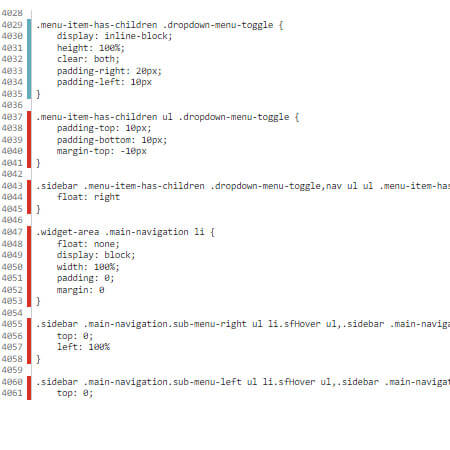
This method is much more tedious but it gives you far more benefits, as you will see. The steps to follow are:
- Open a browser like Chrome
- Load the page from which you want to remove unused CSS files
- Open Chrome Web Dev Tools by pressing F12 or Ctrl + Shift + I
- Load all CSS files via coverage as explained above
- Click on the file from which you want to extract the useful code
- The file will open in the "Sources" tab, where you can see unused CSS code highlighted in red on the left margin, and used code in blue
- Click the responsive button and it will turn blue
- In the upper-left corner you will see a small icon representing a phone and a tablet
- Drag the right margin to its minimum, then back to its maximum
- This forces the browser to load all code used at different device widths — in other words, the code that makes your site responsive
- Now simply copy each block of code highlighted in blue into a new file
You must repeat the entire process for each file from which you want to extract useful code.
Advantages of extracting code via Chrome Web Dev Tools
Despite the tediousness of this method, you can be 100% certain that you have exactly the code you want, in a clean and clear form. And if you want to go a step further, you can consolidate the code for each device width — the media queries (which make your site responsive across mobile and other devices).
Remove files and load useful code in a single file
Having used either of the methods above, you will now have the useful code copied into a single file. All that remains is to remove the selected CSS files using the method explained earlier — specifically here.

How to reduce unused CSS from a single page in WordPress?
This is very useful when you want a feature to exist only on one or a few specific pages. Imagine you only have a contact form on one page. So why would you want the CSS (and/or JS) files from the form plugin to keep loading on all other pages?
To selectively reduce unused CSS files you will need to know the ID of the specific page. This ID appears in the body tag of your HTML code as a class attribute, something like "page-id-123". This allows you to create a conditional that only applies to that ID.
Once you know the page identifier, create the function as follows:
function remove_custom_styles_webheroe() {
	if( is_page(123) ) {
	    wp_dequeue_style( 'handle' );
	    wp_deregister_style( 'handle' );
	}
}
add_action( 'wp_print_styles', 'remove_custom_styles_webheroe' );
What if I want to remove those files from multiple pages at once?
Simply add an array to the conditional, like this:
function remove_custom_styles_webheroe() {
	if( is_page(array(123, 222, 456) ) ) {
            wp_dequeue_style( 'handle' );
	    wp_deregister_style( 'handle' );
	}
}
add_action( 'wp_print_styles', 'remove_custom_styles_webheroe' );
If you want to go deeper into WordPress and get the most out of your website, we recommend learning to use WordPress in a more advanced way. This will allow you to better optimize your site and have greater control over CSS code and other technical aspects.



Comments
Be the first to comment on this post.